
If you know the name of a part in your Advance Steel model, you can locate it in seconds. Here’s how:

1️⃣ Go to the Home tab on the ribbon.
2️⃣ Open the Advance Steel Tool Palette.
3️⃣ In the Tool Palette, look for the Selection section.
4️⃣ Click on Model Browser.

Inside the Model Browser, you’ll see a complete list of all the parts in your model. Simply search or scroll to the part name you need, and Advance Steel will highlight it directly in your drawing.
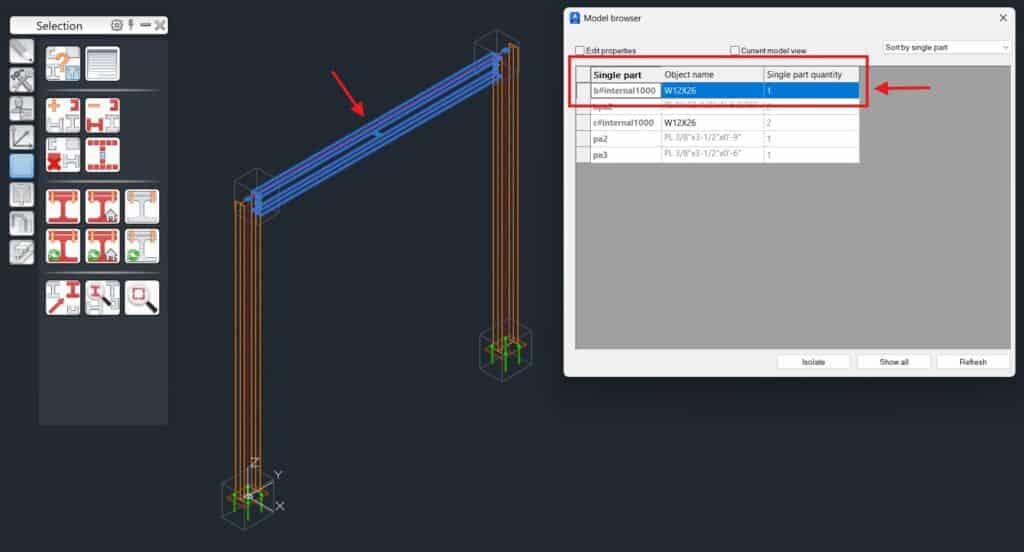
The Model Browser isn’t just for searching by name — you can also organize and filter by part types:
✅ Main Part — typically the primary element in an assembly
✅ Single Part — the unique element number for shop drawings
✅ Preliminary Part

Simply click on the column headers for Main Part, Single Part, or Preliminary Part in the Model Browser to sort the table accordingly. This makes it easy to quickly spot the exact item you want to review.